
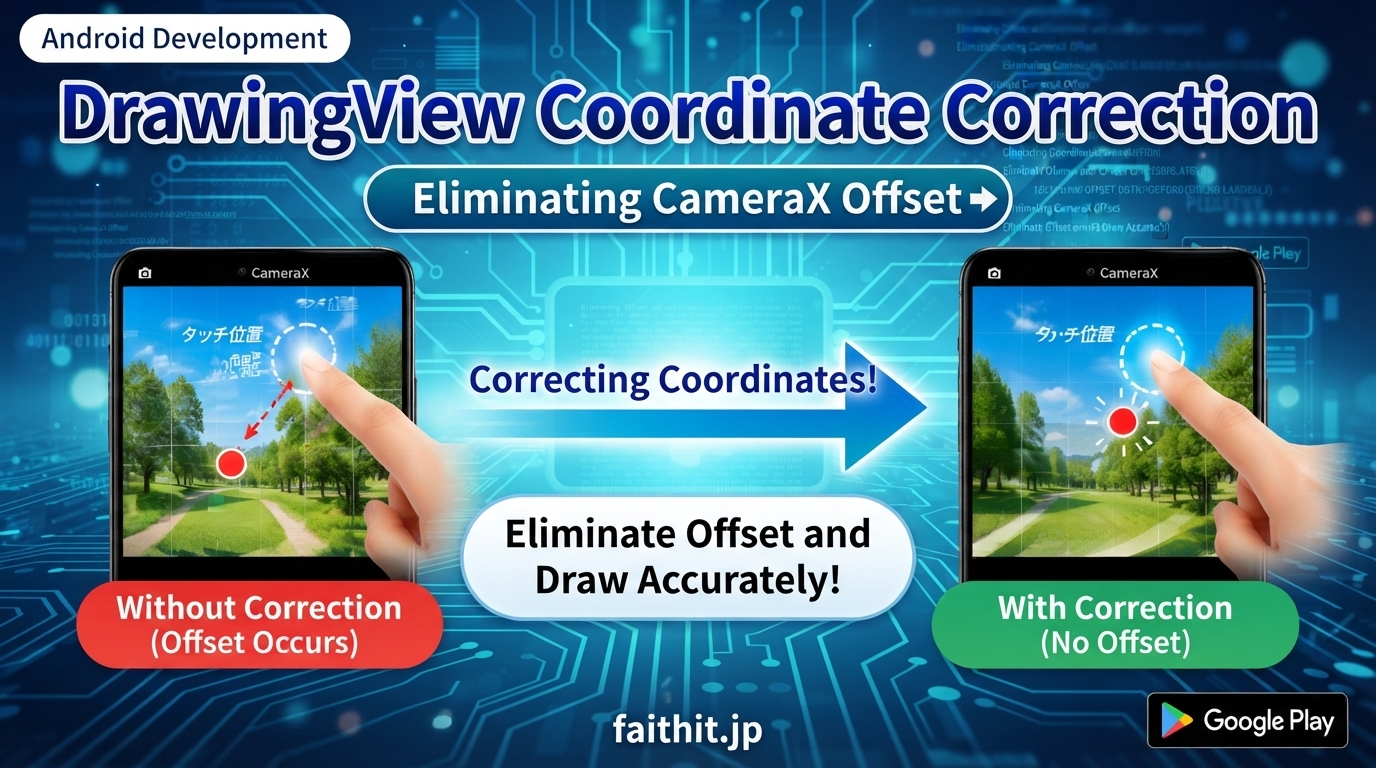
Android CameraX often causes touch coordinate mismatches when overlaying a custom DrawingView on top of a PreviewView. This happens because CameraX internally scales the preview to fit the screen, while your DrawingView uses the actual display size.
This guide explains how to:
- Fix touch coordinate offset caused by PreviewView scaling
- Match DrawingView size with the actual camera image
- Prevent red marks from shifting in the final saved image
- Avoid second-save failures
- Ensure DrawingView does not hide the camera preview
This is the complete guide for anyone building CameraX apps that require precise touch-based drawing.
- 1. Why Touch Coordinates Become Misaligned (PreviewView Internal Scaling)
- 2. DrawingView vs Camera Bitmap Size Mismatch
- 3. Correct Scale Calculation (Essential Formula)
- 4. Corrected DrawingView (Full Working Code)
- 5. Save Without Offset (Correct Merge Logic)
- 6. Common Issues & Fixes
- 7. Summary: Coordinate Correction Is Essential for CameraX Apps
- 8. Example App Using This Technique
- 🟦 Recommended
1. Why Touch Coordinates Become Misaligned (PreviewView Internal Scaling)
CameraX’s PreviewView automatically scales the camera feed internally to fit the device screen.
This means:
- Touch coordinates from DrawingView (screen space)
- Camera preview coordinates (scaled space)
do not match.
Common symptoms
- Red circles appear slightly above or beside the touched point
- Saved images show marks in the wrong location
- Offset amount varies by device
2. DrawingView vs Camera Bitmap Size Mismatch
CameraX’s ImageProxy returns the actual camera resolution (e.g., 1920×1080). But DrawingView uses the screen resolution (e.g., 1080×2400).
This mismatch causes drawing offsets when merging the two bitmaps.
3. Correct Scale Calculation (Essential Formula)
Required values
previewView.widthpreviewView.heightcameraBitmap.widthcameraBitmap.height
Scale factors
java
float scaleX = (float) cameraBitmap.getWidth() / previewView.getWidth();
float scaleY = (float) cameraBitmap.getHeight() / previewView.getHeight();
Corrected coordinates
java
float correctedX = touchX * scaleX;
float correctedY = touchY * scaleY;
4. Corrected DrawingView (Full Working Code)
java
public class DrawingView extends View {

    private Paint paint;
    private List<PointF> points = new ArrayList<>();
    private float scaleX = 1f;
    private float scaleY = 1f;

    public DrawingView(Context context, AttributeSet attrs) {
        super(context, attrs);
        paint = new Paint();
        paint.setColor(Color.RED);
        paint.setStyle(Paint.Style.FILL);
        paint.setAntiAlias(true);
    }

    public void setScale(float sx, float sy) {
        this.scaleX = sx;
        this.scaleY = sy;
    }

    @Override
    protected void onDraw(Canvas canvas) {
        super.onDraw(canvas);
        for (PointF p : points) {
            canvas.drawCircle(p.x, p.y, 20, paint);
        }
    }

    @Override
    public boolean onTouchEvent(MotionEvent event) {
        if (event.getAction() == MotionEvent.ACTION_DOWN ||
            event.getAction() == MotionEvent.ACTION_MOVE) {

            float correctedX = event.getX() * scaleX;
            float correctedY = event.getY() * scaleY;

            points.add(new PointF(correctedX, correctedY));
            invalidate();
            return true;
        }
        return false;
    }

    public void reset() {
        points.clear();
        invalidate();
    }
}
5. Save Without Offset (Correct Merge Logic)
java
private void saveImage(Bitmap cameraBitmap) {

    float scaleX = (float) cameraBitmap.getWidth() / previewView.getWidth();
    float scaleY = (float) cameraBitmap.getHeight() / previewView.getHeight();
    drawingView.setScale(scaleX, scaleY);

    Bitmap drawingBitmap = Bitmap.createBitmap(
            cameraBitmap.getWidth(),
            cameraBitmap.getHeight(),
            Bitmap.Config.ARGB_8888);

    Canvas drawingCanvas = new Canvas(drawingBitmap);
    drawingView.draw(drawingCanvas);

    Bitmap combinedBitmap = Bitmap.createBitmap(
            cameraBitmap.getWidth(),
            cameraBitmap.getHeight(),
            Bitmap.Config.ARGB_8888);

    Canvas combinedCanvas = new Canvas(combinedBitmap);
    combinedCanvas.drawBitmap(cameraBitmap, 0, 0, null);
    combinedCanvas.drawBitmap(drawingBitmap, 0, 0, null);

    drawingView.reset();
}
6. Common Issues & Fixes
Touch offset
→ Always apply scale correction → Ensure PreviewView size is measured correctly
Red marks shift in saved image
→ DrawingView bitmap must match camera resolution
Second save fails
java
image.close();
drawingView.reset();
DrawingView hides PreviewView
xml
android:background="@android:color/transparent"
7. Summary: Coordinate Correction Is Essential for CameraX Apps
With proper scaling:
- Touch marks appear exactly where the user taps
- Saved images match the preview
- Device-dependent offsets disappear
- Save operations become stable
This dramatically improves the reliability of CameraX-based editing apps.
8. Example App Using This Technique
We use this coordinate‑corrected DrawingView in our privacy‑focused camera app, which encrypts photos locally at capture time and stores them securely without cloud upload.
Available on Google Play.
🟦 Recommended
Example App Using This Technique
We use this camera editing method in our privacy‑focused photo app. It encrypts images locally at capture time and stores them securely without cloud upload.
Available on Google Play.



コメント