
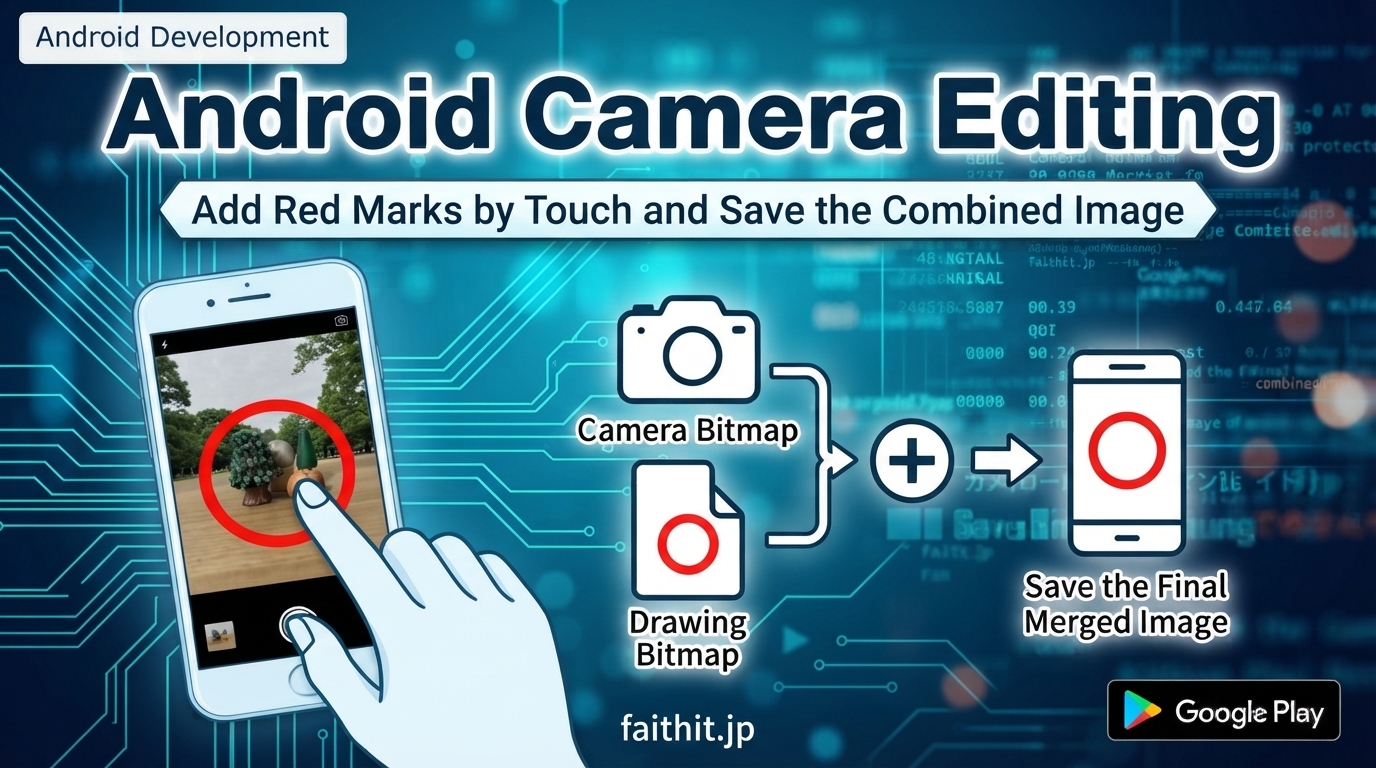
Android CameraX allows you to display a camera preview and overlay custom drawings on top of it. In this article, we implement a feature where the user taps on the preview to place red circles, and the app saves a combined image of the camera frame and the drawn marks.
This guide covers:
- Displaying the camera preview using CameraX PreviewView
- Creating a DrawingView overlay for touch-based red circles
- Combining the camera bitmap and drawing bitmap
- Saving the final merged image to the device
- Handling size mismatches and coordinate offsets
🟢 1. Camera Preview Setup (CameraX)
java
private void startCamera() {
    ProcessCameraProvider cameraProviderFuture =
            ProcessCameraProvider.getInstance(requireContext());

    cameraProviderFuture.addListener(() -> {
        try {
            ProcessCameraProvider cameraProvider = cameraProviderFuture.get();

            Preview preview = new Preview.Builder().build();
            imageCapture = new ImageCapture.Builder().build();

            CameraSelector cameraSelector = new CameraSelector.Builder()
                    .requireLensFacing(CameraSelector.LENS_FACING_BACK)
                    .build();

            preview.setSurfaceProvider(previewView.getSurfaceProvider());

            cameraProvider.unbindAll();
            cameraProvider.bindToLifecycle(this, cameraSelector, preview, imageCapture);

        } catch (Exception e) {
            e.printStackTrace();
        }
    }, ContextCompat.getMainExecutor(requireContext()));
}
🔴 2. DrawingView Overlay (Touch → Red Circle)
java
public class DrawingView extends View {

    private Paint paint;
    private List<Point> points = new ArrayList<>();

    public DrawingView(Context context, AttributeSet attrs) {
        super(context, attrs);
        paint = new Paint();
        paint.setColor(Color.RED);
        paint.setStyle(Paint.Style.FILL);
        paint.setAntiAlias(true);
    }

    @Override
    protected void onDraw(Canvas canvas) {
        super.onDraw(canvas);
        for (Point p : points) {
            canvas.drawCircle(p.x, p.y, 20, paint);
        }
    }

    @Override
    public boolean onTouchEvent(MotionEvent event) {
        if (event.getAction() == MotionEvent.ACTION_DOWN ||
            event.getAction() == MotionEvent.ACTION_MOVE) {

            points.add(new Point(event.getX(), event.getY()));
            invalidate();
            return true;
        }
        return false;
    }

    public void reset() {
        points.clear();
        invalidate();
    }

    private static class Point {
        float x, y;
        Point(float x, float y) { this.x = x; this.y = y; }
    }
}
🧩 3. Layout: PreviewView + DrawingView Overlay
xml
<androidx.constraintlayout.widget.ConstraintLayout
    android:layout_width="match_parent"
    android:layout_height="match_parent">

    <androidx.camera.view.PreviewView
        android:id="@+id/previewView"
        android:layout_width="0dp"
        android:layout_height="0dp"
        app:layout_constraintTop_toTopOf="parent"
        app:layout_constraintBottom_toBottomOf="parent"
        app:layout_constraintStart_toStartOf="parent"
        app:layout_constraintEnd_toEndOf="parent" />

    <faithit.image.ad_98list.ui.home.DrawingView
        android:id="@+id/drawingView"
        android:layout_width="0dp"
        android:layout_height="0dp"
        android:background="@android:color/transparent"
        app:layout_constraintTop_toTopOf="parent"
        app:layout_constraintBottom_toBottomOf="parent"
        app:layout_constraintStart_toStartOf="parent"
        app:layout_constraintEnd_toEndOf="parent" />

</androidx.constraintlayout.widget.ConstraintLayout>
🖼️ 4. Convert ImageProxy → Bitmap
java
private Bitmap imageProxyToBitmap(ImageProxy image) {
    ByteBuffer buffer = image.getPlanes()[0].getBuffer();
    byte[] bytes = new byte[buffer.remaining()];
    buffer.get(bytes);
    return BitmapFactory.decodeByteArray(bytes, 0, bytes.length);
}
💾 5. Combine Camera Bitmap + Drawing Bitmap and Save
java
private void saveImage(Bitmap cameraBitmap) {

    Bitmap drawingBitmap = Bitmap.createBitmap(
            drawingView.getWidth(),
            drawingView.getHeight(),
            Bitmap.Config.ARGB_8888);

    Canvas drawingCanvas = new Canvas(drawingBitmap);
    drawingView.draw(drawingCanvas);

    Bitmap combinedBitmap = Bitmap.createBitmap(
            cameraBitmap.getWidth(),
            cameraBitmap.getHeight(),
            Bitmap.Config.ARGB_8888);

    Canvas combinedCanvas = new Canvas(combinedBitmap);
    combinedCanvas.drawBitmap(cameraBitmap, 0, 0, null);
    combinedCanvas.drawBitmap(drawingBitmap, 0, 0, null);

    String fileName = "IMG_" +
            new SimpleDateFormat("yyyyMMdd_HHmmss", Locale.US)
                    .format(new Date()) + ".png";

    ContentValues values = new ContentValues();
    values.put(MediaStore.Images.Media.DISPLAY_NAME, fileName);
    values.put(MediaStore.Images.Media.MIME_TYPE, "image/png");
    values.put(MediaStore.Images.Media.RELATIVE_PATH,
            Environment.DIRECTORY_PICTURES + "/MyAppFolder");

    ContentResolver resolver = requireActivity().getContentResolver();
    Uri uri = resolver.insert(MediaStore.Images.Media.EXTERNAL_CONTENT_URI, values);

    if (uri != null) {
        try (OutputStream out = resolver.openOutputStream(uri)) {
            combinedBitmap.compress(Bitmap.CompressFormat.PNG, 100, out);
        } catch (Exception e) {
            e.printStackTrace();
        }
    }

    drawingView.reset();
}
⚠️ 6. Common Issues & Fixes
Touch coordinates do not match the camera preview
PreviewView may scale the camera feed internally. If coordinates appear shifted, apply scaling based on PreviewView size.
Second save fails
Always call:
java
image.close();
drawingView.reset();
PreviewView hidden behind DrawingView
Ensure DrawingView is transparent and not blocking the preview.
🟦 Recommended
Example App Using This Technique
We use this camera editing method in our privacy‑focused photo app. It encrypts images locally at capture time and stores them securely without cloud upload.
Available on Google Play.



コメント