
- Design & Specification: The Real Trade-offs Behind Building “Encrypted Media Vault”
- 1. File List Screen: Features and Intentional Trade-offs
- 2. First Google Play Release: Experiments and Careful Use of Ads
- 3. The Hardest Decision: Where Should Encrypted Files Be Stored?
- 4. A Hidden Trap: Device Sleep During Heavy Encryption
- 5. A Pleasant Surprise: AI (Copilot/Gemini) as a Development Partner
- Check the App on Google Play
- Download on Google Play
- Next Article Preview: Playback & Preview Design
- Related Articles
Design & Specification: The Real Trade-offs Behind Building “Encrypted Media Vault”
Building an app is not just about coding—it’s about making tough decisions. Especially for an app that handles privacy and security, adding more features often means adding more complexity, which can confuse users. To keep the app simple enough for elderly users while maintaining strong security, I had to make many deliberate trade-offs.
This article documents the design decisions behind the file list screen, the biggest dilemma around storage locations, and several hidden pitfalls discovered during development.
1. File List Screen: Features and Intentional Trade-offs
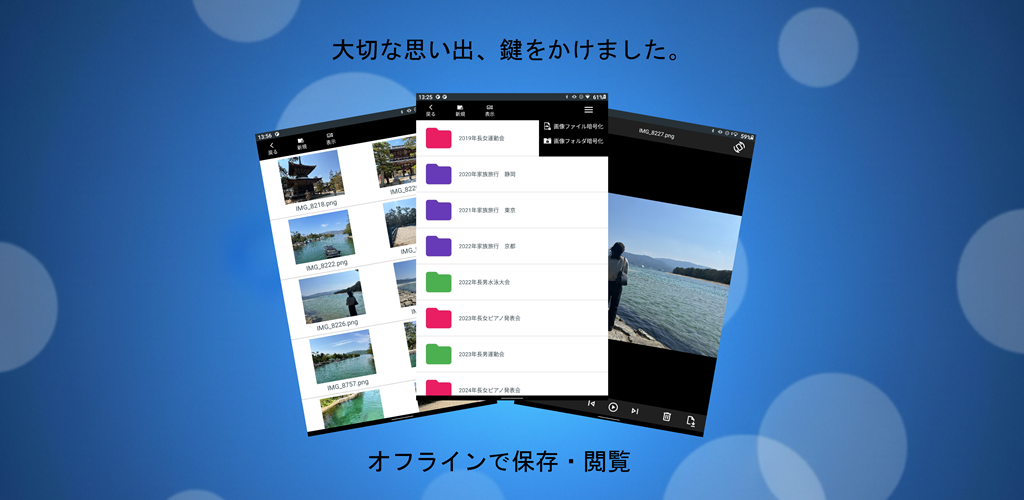
To ensure elderly users can operate the app intuitively, the main screen is kept extremely simple, with additional functions tucked away in sub‑menus. Behind the scenes, however, several important trade-offs shaped the final design.
Optimized Thumbnail Generation (Separate Handling for Images and Videos)
Generating thumbnails for all files at once would slow down the device significantly. So I adopted a hybrid approach:
- Images: Thumbnail generated at encryption time
- Videos: Thumbnail generated at first playback, then encrypted and cached
This keeps the app responsive while avoiding heavy processing during initial load.
Folder Management and Visual Identification
To prevent users from getting lost as files increase, the app supports:
- Creating folders
- Renaming folders
- Changing folder colors for easier visual identification
This helps elderly users quickly recognize categories at a glance.
Encryption Units and “Long‑Press Delete” UI
Encryption can be applied to:
- Individual files
- Entire folders at once
The delete UI was a major design decision. Instead of showing a confirmation dialog (“Are you sure?”), which is annoying for daily use, I adopted a long‑press delete gesture—simple, intentional, and hard to trigger accidentally.
Decryption as a Backup Alternative
The app intentionally avoids cloud backup to maintain strict privacy. However, users still need a way to retrieve their data.
So I implemented:
- File-level decryption
- Folder-level decryption
This allows safe export without compromising the app’s offline design.
[Under Consideration] Grid Layout Variations
Currently, the app supports:
- List view
- 2×2 grid view
But as file counts grow, higher-density grids (4×4, 8×8) may improve usability. I plan to evaluate this based on user feedback.
Future Task: Fingerprint Authentication
Biometric authentication could strengthen security, but it may also complicate the UI for elderly users. This remains a future consideration.
2. First Google Play Release: Experiments and Careful Use of Ads
This app was my first release on Google Play. Originally, it was meant for private family use, so ads were unnecessary. But releasing it publicly was a great opportunity to learn AdMob and the publishing workflow.
I refused to include intrusive ads such as:
- Full-screen pop-ups
- Forced ads before video playback
Instead, ads are limited strictly to:
- A small bottom banner on the file list screen only
No ads appear during photo viewing or video playback, preserving the quiet, focused experience.
Integrating Ads as Part of the UI
By placing the banner at the bottom, it blends naturally into the layout rather than feeling like an intrusive pop-up. This allowed me to test ad delivery without breaking the app’s minimalist design.
3. The Hardest Decision: Where Should Encrypted Files Be Stored?
Two storage options were considered:
Option A: App-private storage (Context.filesDir)
Pros:
- Perfect security
- Invisible even when connected to a PC
Cons:
- Data is deleted when the app is uninstalled
Option B: Shared storage (Pictures/ folder)
Pros:
- Data remains even after uninstall
Cons:
- Encrypted filenames appear as meaningless strings
- Users may accidentally delete them
After evaluating the app’s purpose—a viewing tool for devices that already have master backups elsewhere—I chose app-private storage. This avoids accidental deletion and ensures maximum privacy.
4. A Hidden Trap: Device Sleep During Heavy Encryption
During emulator testing, everything seemed fine. But on real devices, a critical issue appeared:
When encrypting or decrypting large files, the device may enter sleep mode, interrupting the process and risking data corruption.
To solve this, I implemented:
FLAG_KEEP_SCREEN_ON- Proper WakeLock handling
This ensures the screen stays awake during heavy processing.
5. A Pleasant Surprise: AI (Copilot/Gemini) as a Development Partner
I expected encryption and streaming logic to be the hardest part. But with AI assistance, even complex refactoring—such as switching from full decryption to partial streaming—was smoother than anticipated.
AI helped validate logic, propose safer refactoring paths, and accelerate development far beyond what I expected from solo development.
Check the App on Google Play
- Free
- Fully offline
- AES-encrypted storage
- Minimal ads (file list only)
Download on Google Play
▼Download the app on Google Play (opens Google Play)

Next Article Preview: Playback & Preview Design
The next article dives into:
- Fully separating image/video adapters
- Secure encrypted screenshot functionality
- Handling zoom/position reset issues
- Tablet gesture conflicts
- Migrating from MediaPlayer to ExoPlayer (Media3)
- Detecting corrupted or incompatible video files
- AI-assisted refactoring of the playback engine
Related Articles
Explore more behind the development of this encrypted media app:
- Building an Offline Encrypted Android App
Why the app was created and the core philosophy behind its fully local design. - Encrypted Video Streaming on Android
Technical deep dive into partial decryption, secure playback, and performance tuning. - Design Trade-offs in Android Encryption
UI/UX decisions, storage dilemmas, and practical compromises made during development. - Encrypted Android Playback & Preview How encrypted image and video playback achieves smooth performance and secure behavior across devices.
コメント